Start Claude's five-hour clock before you wake up
One scheduled message and five minutes of setup, and your Claude limit resets twice during work hours instead of once.
Luís Rodrigues3 min read
Since I set up one scheduled message, my Claude limit resets at 11am and again at 4pm, while I'm still working.
The five-hour clock starts with your first message (Claude's help centre). Start at 9 and you can hit the limit before lunch, then wait until 2. A scheduled task can send that first message at 6am while you sleep, and it takes five minutes to set up.
| Your day | First window | Second window | Third window |
|---|---|---|---|
| No scheduled task, first message at 9am | 9am to 2pm | 2pm to 7pm | |
| Scheduled message at 6am | 6am to 11am | 11am to 4pm | 4pm to 9pm |
Before you start
- A paid plan. Scheduled tasks are on Pro, Max, Ultra, Team and Enterprise, not on the free plan (Claude's help centre). Verified Ultra accounts don't have a five-hour limit, so they don't need this.
- Claude open on the web or in the desktop app. You set it up once. After that it runs on Anthropic's servers, even when your laptop is closed.
Setting 1: The task
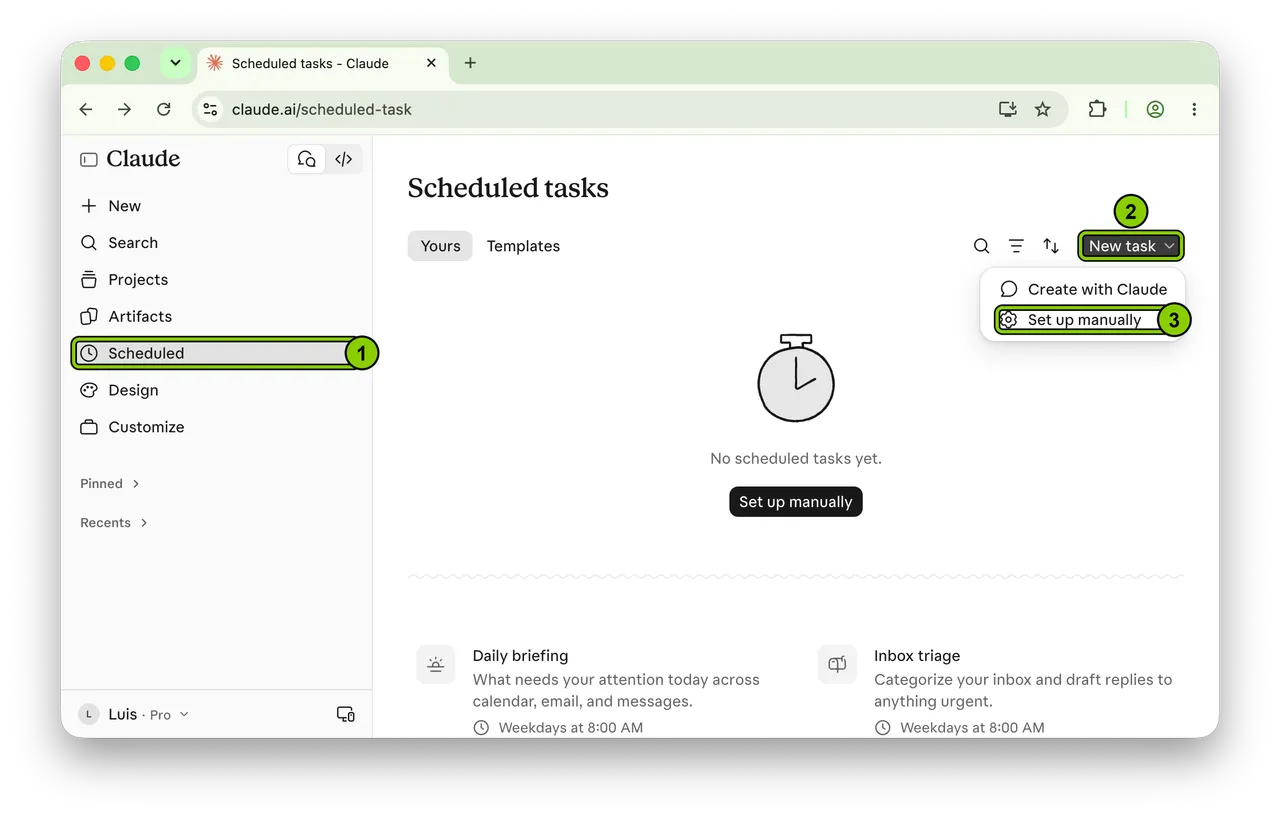
Click Scheduled in the left sidebar (1), then New task (2), then Set up manually (3).
Give it a name (1), then type the message in the instructions box (2):
say hi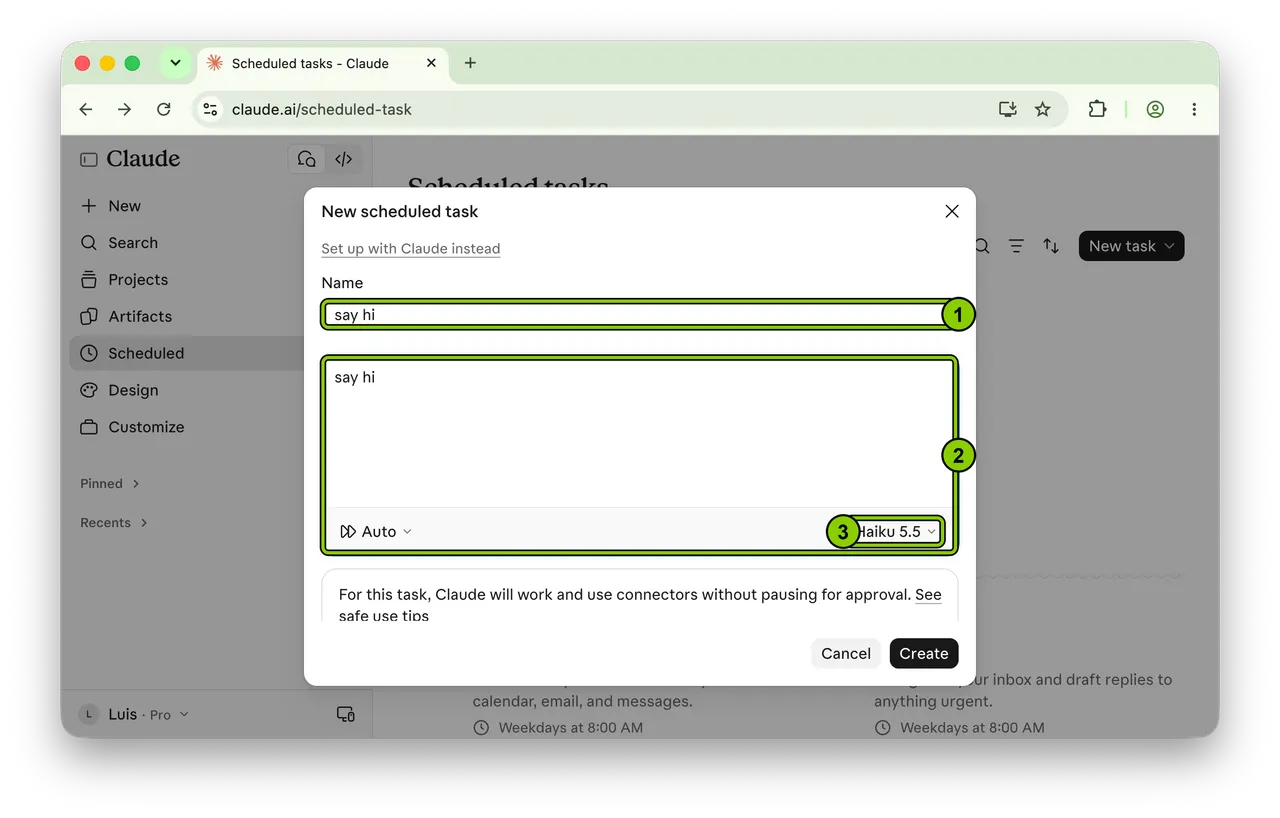
Setting 2: The model
Open the model menu under the instructions (3) and pick Haiku 5.5, the smallest model. It uses the least of your limit, and saying hi doesn't need more.
Setting 3: The time
In the Trigger row, choose Schedule (1), then Daily (2), then a time (3). Pick Weekdays instead of Daily if you don't use Claude at weekends. Then click Create (4).
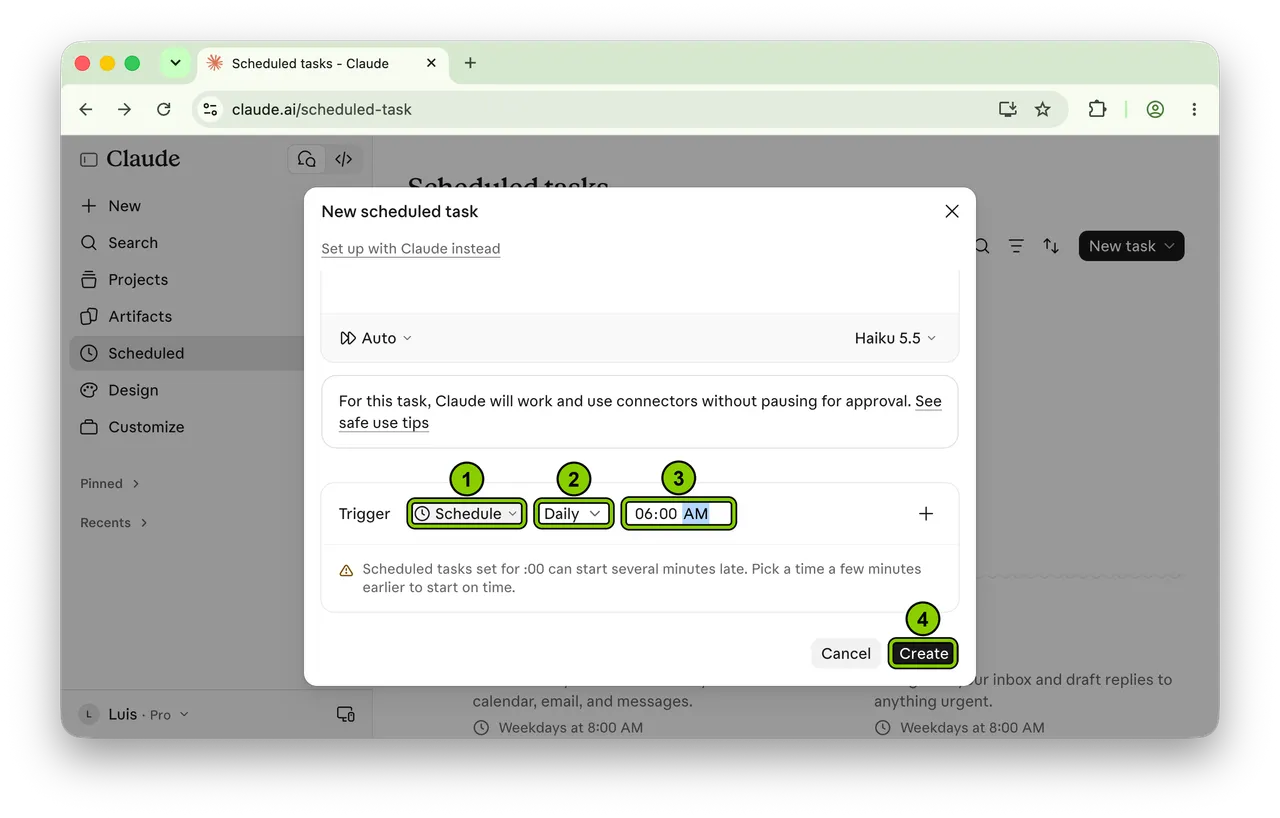
Pick a time about three hours before you start work, and a few minutes before the hour (5:55 rather than 6:00), because tasks set for :00 can start late.
Check it worked tomorrow morning
Before your first chat, open Settings, then Usage. Under Current session, you should already see a reset time about five hours after the task ran. If the session hasn't started, go back to Scheduled, open the task and check whether it ran.
Common mistakes
- Scheduling on the hour. The task can start several minutes late, and your resets move with it. Use 5:55, not 6:00.
- Giving it a real job. A task that's allowed to use your connectors may read your inbox every morning. Keep it to "say hi" on Haiku.
- Scheduling it too late. If the task runs at 8:30 and you start at 9, the first window ends at 1:30 and you've gained almost nothing. Aim for about three hours before you start.
The honest part
- You don't get more Claude. Your weekly limit stays the same (Claude's help centre). This only moves your resets into your working hours, so you hit the five-hour wall less often. If you already run out of your weekly limit, this won't help.
- It runs whether you work or not. On holidays and days off, pause it from the Scheduled page.
- Nothing personal in the task. It only has to say hi, so don't add account details, files or anything private to the instructions.
Your action plan
- Open Scheduled and create a task that says hi.
- Pick Haiku 5.5 and set the time to about three hours before you start work, five minutes before the hour.
- Tomorrow morning, check Settings, then Usage, before your first chat.
- After a week, move the time if your resets still land at the wrong moment.
Set it up before you close your laptop tonight.
Try next: Pick the right Claude model: Haiku, Sonnet, Opus or Fable
- #claude
- #limits
- #scheduled-tasks