Let Claude watch any video, frame by frame
A free plugin that turns any video into timestamped frames and a transcript Claude can read. About 15 minutes to set up, and it runs on your computer.
Luís Rodrigues7 min read
Claude can read documents and images, but it can't open a video file (Anthropic's list of supported files, checked September 2026). Paste a link into most chatbots and the best you get is a summary of what was said. The slides, the text on screen and the way the video is cut never reach the model, so any answer about them is a guess.
Watch is a free plugin for Claude that works around this. It downloads the video, keeps a frame every time the picture changes and pulls the captions. Claude then reads the pictures and the words on one timeline and answers with timestamps you can check. In about 15 minutes you install it, set it up so everything stays on your computer, and run four prompts that take a video apart.
Before you start
- The Claude desktop app on a paid plan. Watch only runs in the app's Code tab, which needs Pro or above (checked September 2026). It doesn't work in normal chats or in Cowork.
- yt-dlp and ffmpeg. The free programs that download the video and cut the frames. This guide installs both, or Watch can install them for you on a Mac.
- A short video to test with. Under ten minutes works best.
The plan · 15 minutes, 5 prompts
- Install the plugin
- Set it up, and choose local
- Watch your first video
- Break down someone else's video
- Turn a how-to video into steps
1. Install the plugin
Watch is made by an independent developer and shared on GitHub under the MIT licence, free for anyone to use. You add it inside the Claude desktop app:
Click Customize in the sidebar, then Plugins.
Click Add, then Add marketplace, then Add from a repository.
Paste this address into the URL box and click Sync:
https://github.com/bradautomates/claude-videoFind Watch in the list that appears and install it. Adding the marketplace alone doesn't install it.
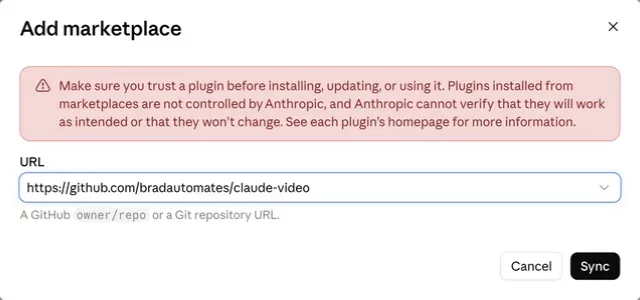
Heads up: The red box is Anthropic's standard warning: plugins come from other people, and Anthropic doesn't check them. A plugin is instructions and small programs Claude will run, so only add ones you trust. This one's
SKILL.mdon GitHub says in plain English what it does.
2. Set it up, and choose local
Click the Code tab, choose Local and select a folder for your videos. Next to the send button, set the permission mode to Manual, so Claude asks before it runs anything. Then paste:
Use the watch skill. This is my first time, so run its setup.

1. Check whether Python, ffmpeg and yt-dlp are installed. Install anything missing, but show me each command before you run it and wait for my OK.
2. When the setup asks how watch should view videos, I choose "local". Don't set up Gemini or any API key.
3. For detail, I choose "balanced".
4. For videos without captions, I choose "none" for now.
5. When you're done, tell me in plain words what you installed and which settings you saved.
"Balanced" keeps up to 100 frames, picked at scene changes. "None" means Watch uses the video's own captions when it has them; a video without captions still gets its frames, just no transcript. For those, you can later switch to "whisperx", which transcribes on your computer but needs about 3 GB of disk and 8 GB of memory.
Heads up: The setup recommends Gemini first. With Gemini, the video goes to Google and Google's model watches it instead of Claude. Google's terms for the free tier say human reviewers may read what you send, and "Do not submit sensitive, confidential, or personal information." Local keeps the download and the frames on your computer.
3. Watch your first video
Start with a short video you know well, so you can tell whether the answer is right.
Use the watch skill on this video: [PASTE THE LINK, OR THE FILE NAME IF IT'S IN THIS FOLDER]

1. Summarise it in 8 to 10 bullet points, each with the timestamp where it happens.
2. For each point, say whether it comes from what's on screen, what's said, or both.
3. List any text that appears on screen (titles, slides, captions, prices) with its timestamp.
4. Tell me which parts you answered from the transcript alone, where you had no frame to check.
Point 4 matters because Watch picks frames at scene changes. A moment with no cut may have no frame, and Claude should tell you instead of guessing. On videos over ten minutes the frames spread thinner, so give a start and end time ("only from 12:00 to 18:30").
4. Break down someone else's video
Ads, reels and product demos work mostly through what's on screen: the first shot, the text overlays, how fast it cuts. A transcript misses almost all of it.
Use the watch skill on this video: [PASTE THE LINK]
I'm studying it because [WHAT YOU MAKE, E.G. "I POST SHORT VIDEOS ABOUT MY BAKERY ON INSTAGRAM"].

1. The first 3 seconds: describe exactly what's on screen and what's said, and why someone would keep watching.
2. A table of every scene: start time, what's on screen, text on screen, what's said.
3. The pacing: roughly how many cuts per minute, and where it speeds up or slows down.
4. The call to action: what it asks the viewer to do, when, and how it's shown.
5. Three things I could borrow for my own videos, and one thing I should avoid.

Don't tell me it's a great video. Tell me what a skeptical viewer would scroll past, and at which second.
Run it on three or four videos from the same account and compare the tables. The patterns show up quickly: the same kind of opening shot, the same length, the call to action at the same point.
5. Turn a how-to video into steps
A screen recording's transcript is full of "click here" with no way to know where "here" is. The frames show the buttons and menus.
Use the watch skill on this tutorial: [PASTE THE LINK OR FILE NAME]

1. Write it as numbered steps I can follow without the video.
2. For each step, name the exact button, menu or setting shown on screen, and give the timestamp.
3. Use larger frames if the text on screen is too small to read.
4. If the video skips a step or goes too fast to see what was clicked, say so at that step. Don't guess.
When one moment matters more, like a slide full of numbers, look closer:
Use the watch skill on the same video again, but only from [START TIME] to [END TIME], with frames at 1024 pixels wide so small text is readable.

Tell me word for word what's written on screen in that part, and quote the timestamp of the frame you read it from. If a word is too blurry to read, mark it [UNCLEAR].
Common mistakes
- Asking in a normal chat. Watch only runs in the Code tab. In a chat, Claude gives you a transcript summary at best.
- Picking the "token-burner" detail. It keeps every scene change with no cap, and every frame counts toward your Claude usage. Start with balanced.
- Asking about music or tone of voice. The local engine gives Claude pictures and words, nothing else from the soundtrack.
The honest part
- It samples, and it can misread. Claude sees still frames, not motion, and can misread small or blurry text. Before you quote a detail, check the video at that timestamp.
- Claude still sees the frames. The download stays on your computer, but Claude reads the frames like any image you share. Don't use it on video you wouldn't share with Claude, and don't use it on meeting recordings unless everyone in them agreed.
- You still pay for Claude. The plugin is free, but the Code tab needs a paid plan, and 100 frames use far more of your limit than a normal message.
- Other people's videos come with rules. Most platforms' terms limit downloading, even to take notes, and the copyright stays with the creator. The yt-dlp guide has the details.
- Text in a video can try to give orders. Someone can put "ignore your instructions and…" on screen. Watch tells Claude to treat video content as information, never instructions. Stay in Manual mode anyway.
- One person maintains it (last updated September 2026), and it can change or stop.
Your action plan
- Install Watch and run "Set up watch" with local.
- Run "Watch this" on a short video you already know, and check three of the timestamps.
- Run "Break it down" on one video from an account you admire.
- Next time you're stuck on a tutorial, run "Turn it into steps" before you rewatch it.
Install it tonight and try it on one short video.
Try next: Save any online video to your computer with yt-dlp
- #claude
- #video
- #plugins