Erase your private life from ChatGPT in four places
Four settings, about ten minutes, and ChatGPT stops keeping the things you never meant it to remember.
Luís Rodrigues6 min read
ChatGPT keeps what you tell it in four different places, and you've probably never opened most of them. The health question you asked at midnight, the salary you pasted before a negotiation, the bank statement you uploaded to understand a charge: each one can end up in a different place.
A fact ChatGPT saved to its memory stays after you delete the chat it came from, and so does a file sitting in your Library. Clearing your history only covers one of the four places.
We're going to check all four, with screenshots: what it remembers, what you said, what you uploaded and what it learns from. It takes about ten minutes, and everything was checked on chatgpt.com on 5 October 2026.
Before you start
- Export first: Settings, then Data controls, then Export. Deleting can't be undone, so keep a copy of anything you might want later.
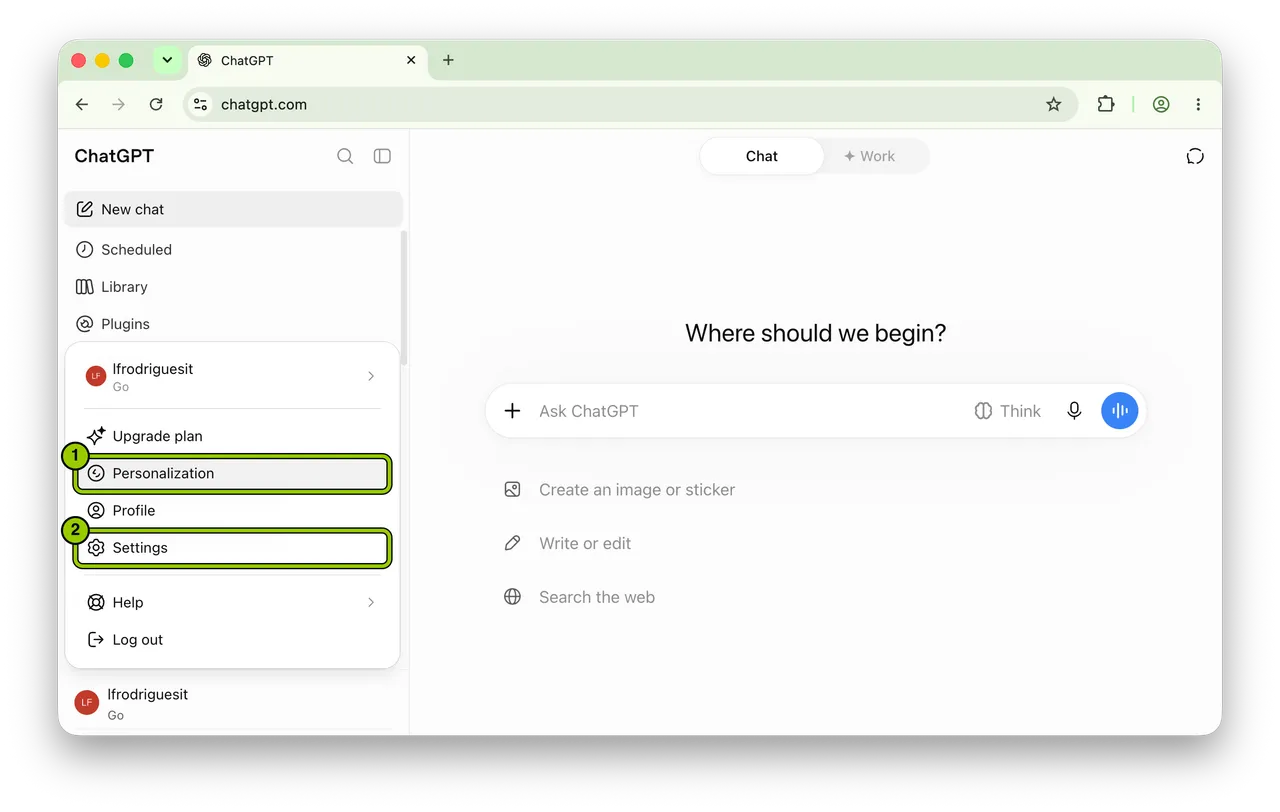
Click your name at the bottom left of the sidebar to open the menu. Personalization (1) has a shortcut there; everything else is under Settings (2).
Setting 1: Memory
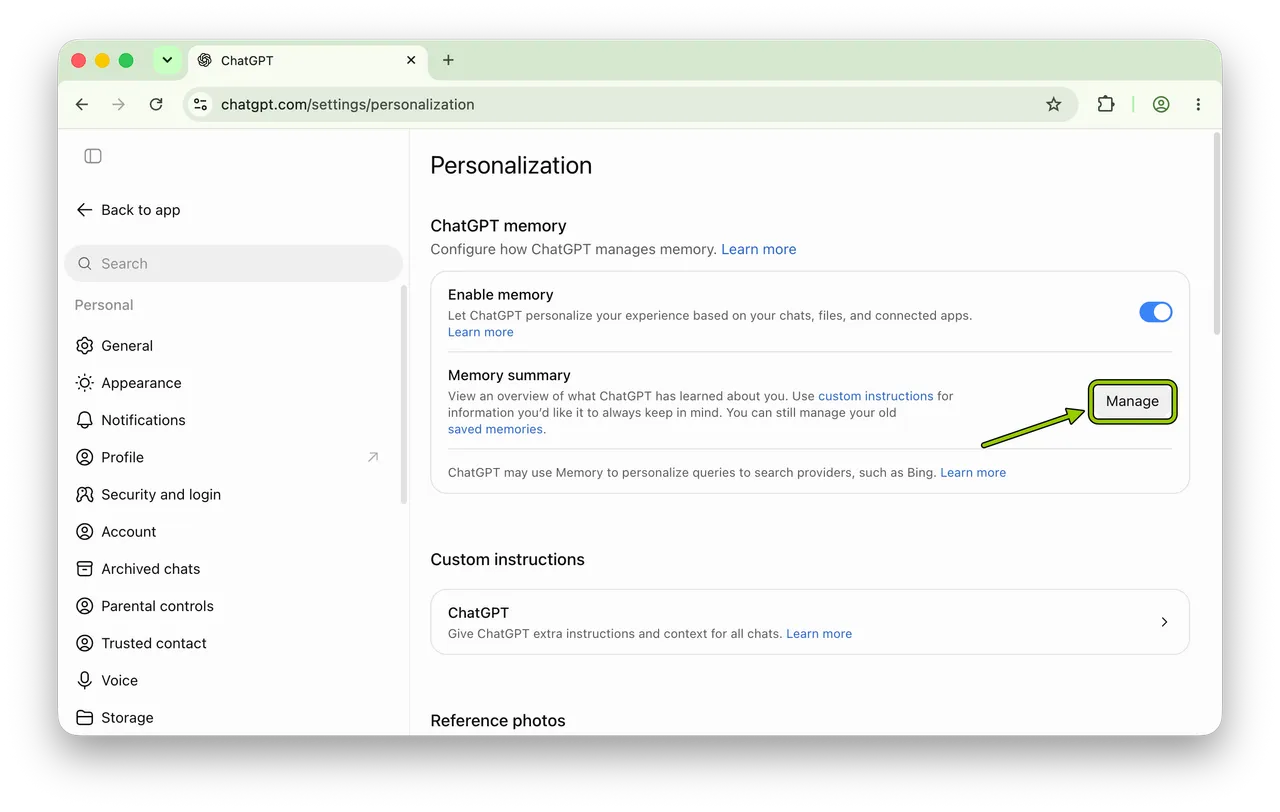
Go to Settings, then Personalization, and click Manage next to Memory summary.
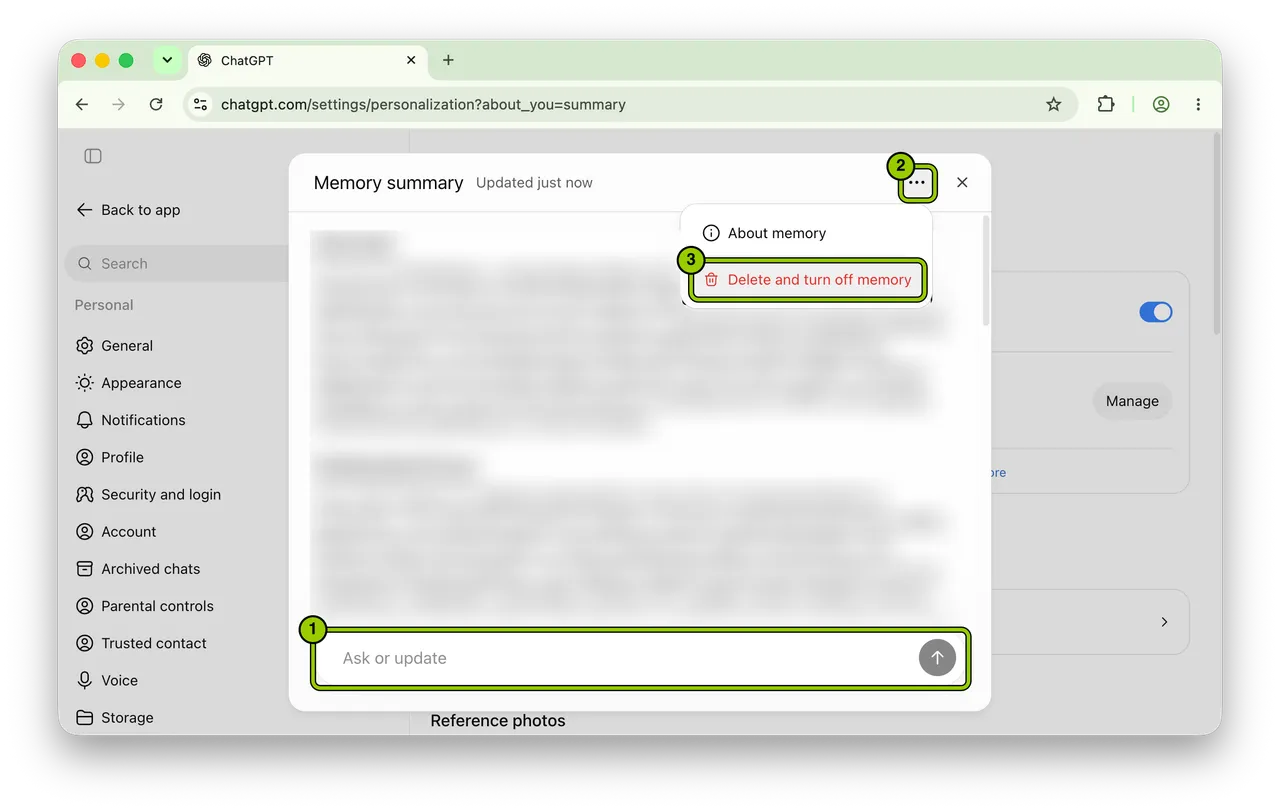
Read the whole summary and note anything about your health, money, family or where you live. To remove specific things, type them into the Ask or update box at the bottom of the summary (1). For example:
Remove these details about me from your memory:

1. [THE FIRST THING, E.G. "MY DIAGNOSIS"]
2. [THE SECOND THING, E.G. "WHAT I EARN"]
3. [ADD OR DELETE LINES AS NEEDED]

Delete them completely. Don't keep a vaguer version or a hint of them. Then show me the parts of the summary you changed.
Check the summary again once it updates (OpenAI's memory help page). If you want to start from zero, open the three dots (2) at the top of the summary and choose Delete and turn off memory (3).
Older memories saved before the summary existed are behind the saved memories link on the Personalization page. Go through them and delete the ones you don't want.
Setting 2: Your chats
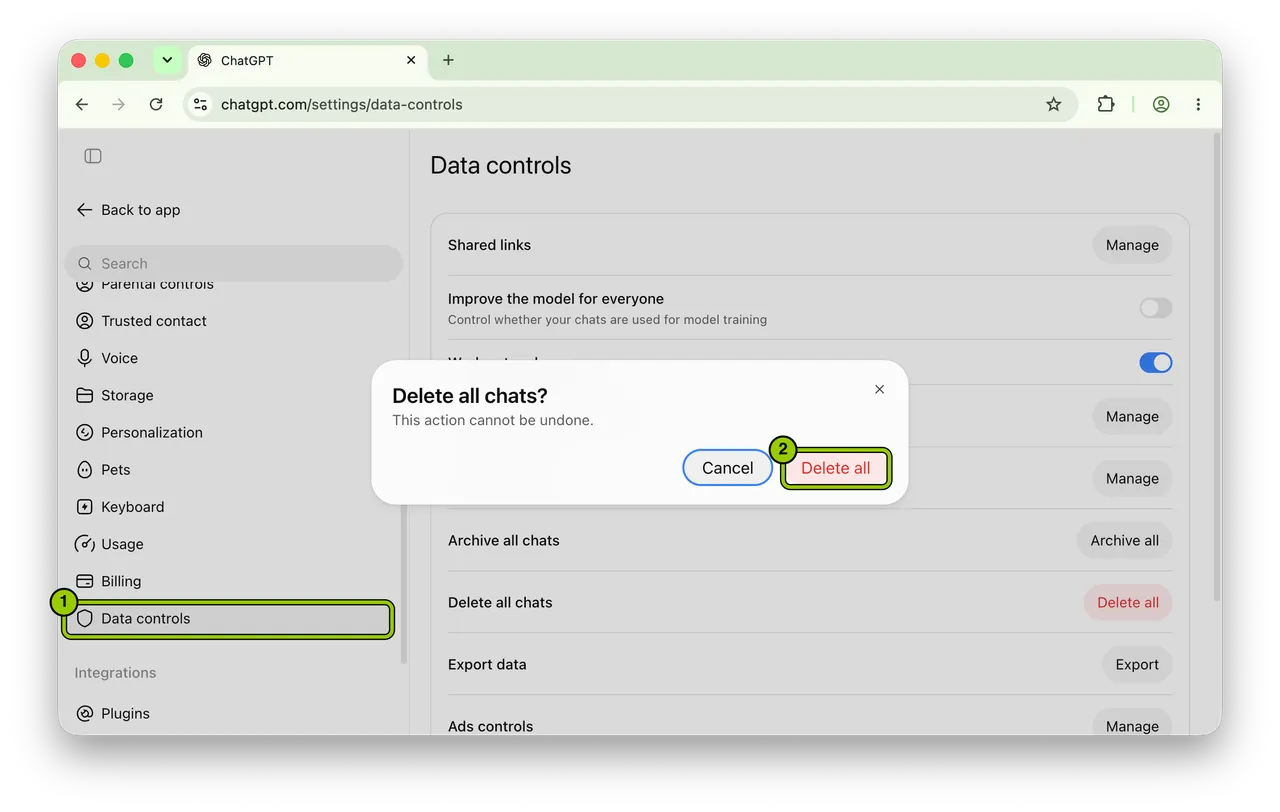
Go to Settings, then Data controls (1), then Delete all next to Delete all chats, and confirm (2).
This also clears chats inside projects (OpenAI's help page on deleting chats). Chats you archived are listed under Data controls, then Archived chats, then Manage; check that list afterwards and delete anything still in it.
If you want to keep most of your history, skip Delete all and remove chats one at a time from the sidebar instead.
Setting 3: Your Library
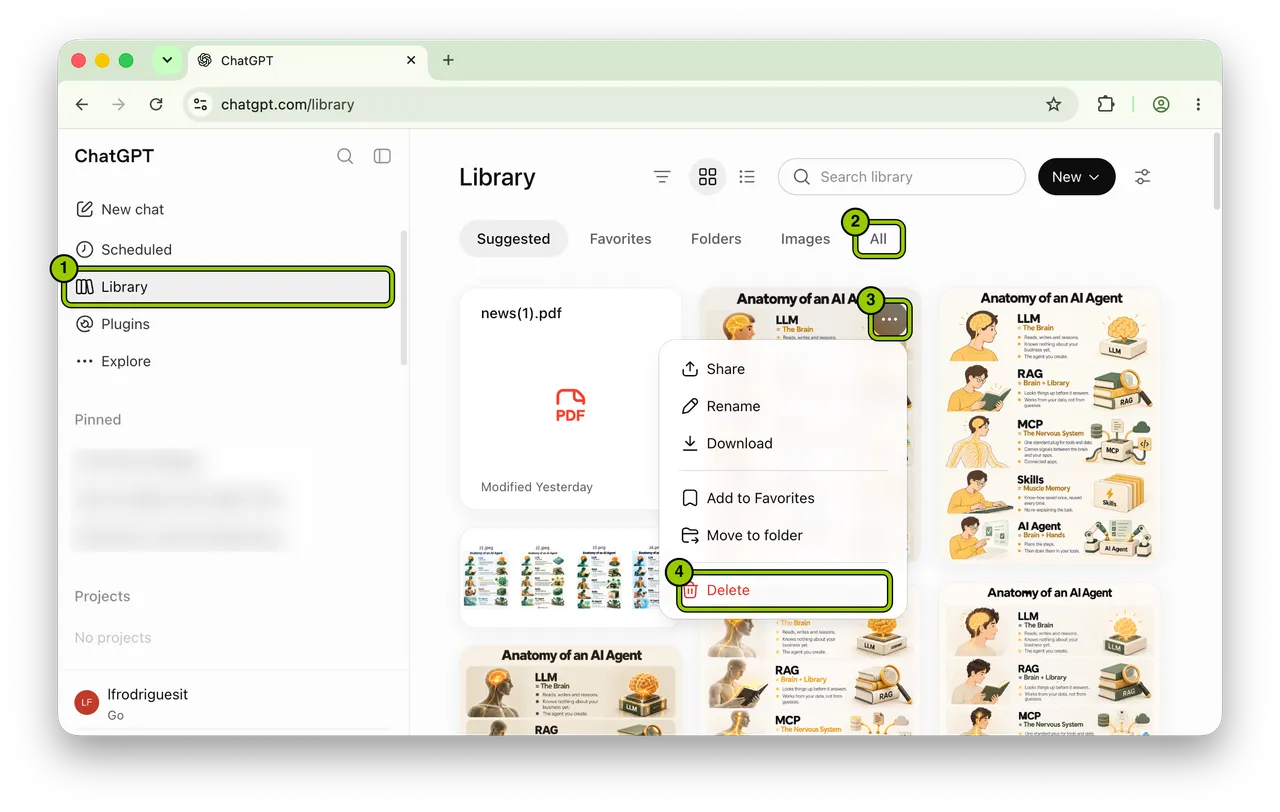
The Library holds the files and images you've uploaded or made. Deleting a chat doesn't delete a file saved there (OpenAI's page on chat and file retention).
Click Library in the sidebar (1) and then All (2) to see everything. For each file you don't want kept, hover over it, click the three dots (3), then Delete (4).
Pay special attention to payslips, bank statements, contracts, medical letters, ID photos and screenshots of other people's messages.
Setting 4: Model training
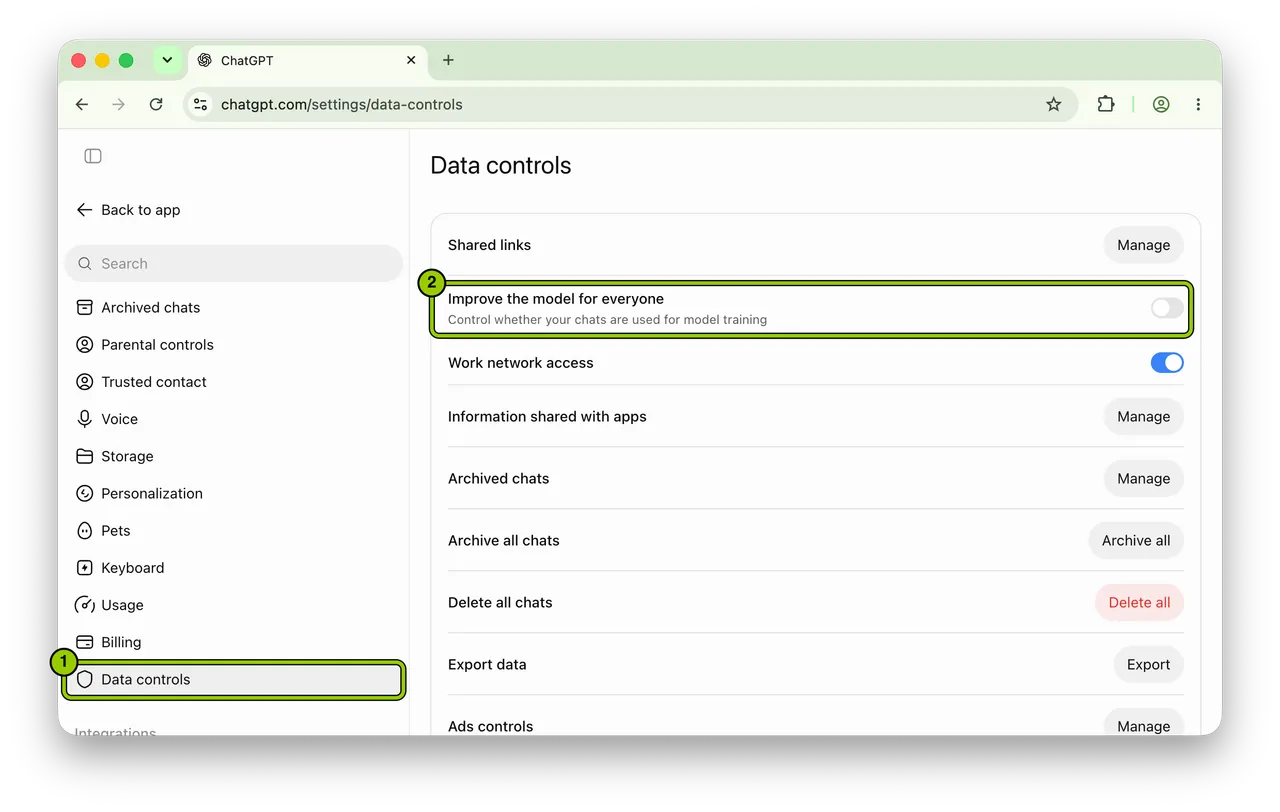
Training means OpenAI can use your chats as examples when it builds future versions of its models. It's on by default for personal accounts.
Go to Settings, then Data controls (1), and turn off Improve the model for everyone (2). Your chats stay in your history; they just aren't used for training any more (OpenAI's data controls page).
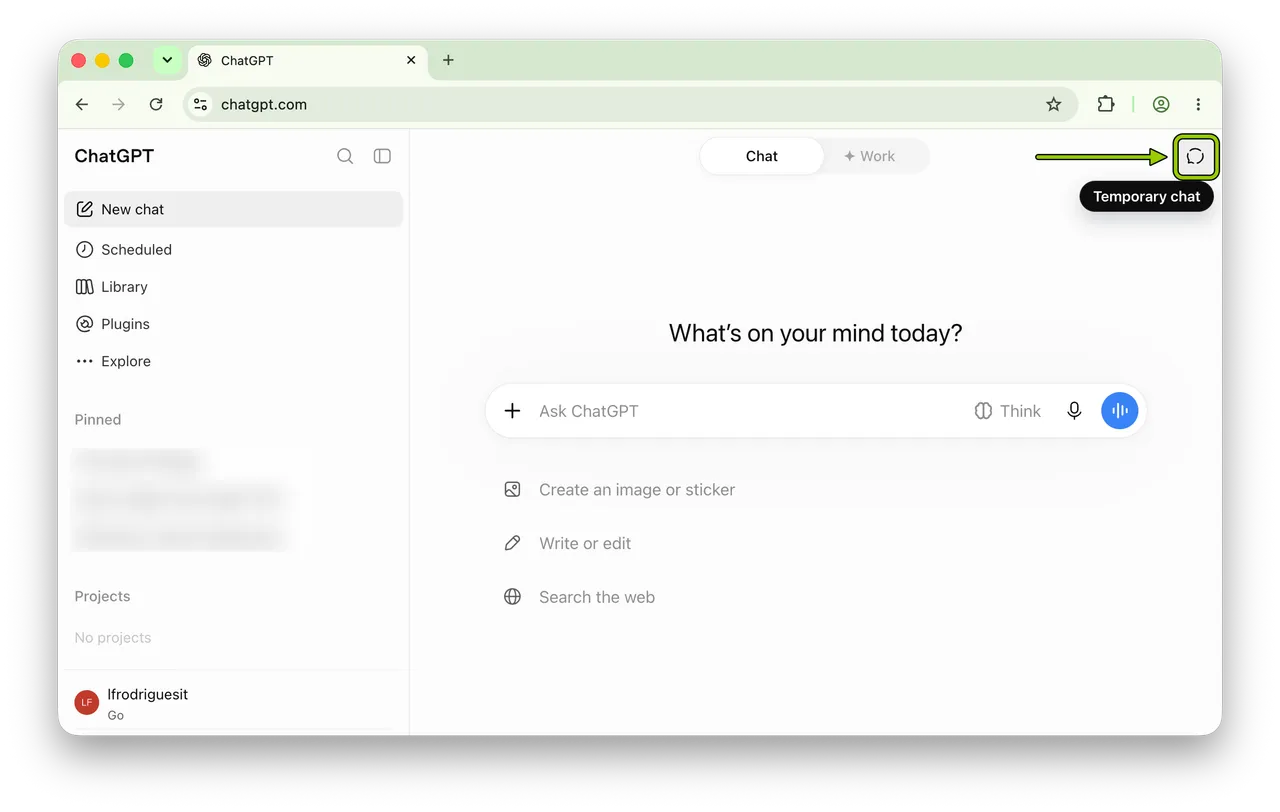
Tip: For anything sensitive from now on, start a Temporary Chat instead: open a new chat and click the speech bubble icon at the top right. It isn't saved to your history, doesn't use or update memory, isn't used for training, and is deleted from OpenAI's systems after 30 days (OpenAI).
Common mistakes
- Deleting before you export. Deleted chats can't be recovered. Request the export first; the file arrives by email.
- Deleting your chats and thinking memory went with them. Memory is separate. Do Setting 1 on its own and open the summary again afterwards to check.
- Turning training off, then rating answers. A thumbs up or down can still send that whole chat for training (OpenAI). On sensitive chats, skip the thumbs.
The honest part
- Full deletion takes up to 30 days. Chats, files and memories are removed from your account straight away, but OpenAI takes up to 30 days to delete them from its systems, and it can keep some data longer when the law requires it.
- Deleting everything else still leaves your account. To close it, go to Settings, then Account, then Delete. It's permanent and ends your access to ChatGPT and OpenAI's API (OpenAI's help page on deleting your account).
- Leave sensitive details out in the first place. Account numbers, passwords, health records and other people's details don't need to be in a chat. Black them out before you upload a document, or use a Temporary Chat.
- Some things are out of reach here. Data you sent to GPTs or connected apps is listed under Data controls, then Information shared with apps, and copies other people saved from your shared links stay with them. A work or school account follows your organisation's rules, so ask your admin. For a formal request about your personal data, use OpenAI's Privacy Portal.
Your action plan
- Open your memory summary and read it.
- Remove what you don't want kept, then check your saved memories.
- Open your Library, click All, and delete the files you wouldn't want found.
- Turn off Improve the model for everyone.
- Decide about your chats: export, then delete all or delete one by one.
Step 1 takes two minutes. Do it tonight.
Try next: Move a long chat to a fresh one without losing your place
- #chatgpt
- #privacy
- #settings