Claude mods: build the features you wish Claude Code had
Four prompts, a few minutes each, and Claude builds its own add-ons: a context meter, a changes panel, a delete guard and your writing rules.
Luís Rodrigues9 min read
My first mod took about two minutes. I typed one sentence into Claude Code, "make a mod that shows how full this chat is", approved a few files, and a bar appeared above the prompt box.
Since 1 October 2026, Claude Code has mods (release notes): add-ons that change how it looks and behaves. The official docs are written for developers and full of JavaScript, so it's easy to decide mods aren't for you.
You can build one without touching code. Describe what you want, and Claude writes it for you to approve. Here are four to start with, one prompt each: a meter for how full the chat is, a panel of the files Claude changed, a guard that asks before anything gets deleted, and your writing rules added to every message.
Before you start
- The Code tab. Start a local session in the Code tab of the Claude desktop app, or run
claudein a terminal. Mods don't show anything in the VS Code chat panel or in cloud sessions. - Version 2.1.286 or later. Type
/statusand read the Claude Code row. In a terminal you need 2.1.287 or later. - A folder you trust. Mods only load in a folder where you've accepted Claude Code's trust prompt.
Describe, approve, keep
Describe. Type what you want in plain words. Claude writes the mod into a folder that belongs to this session. The first line of each prompt below works on its own; the numbered lines pin down the details, so there's less to fix afterwards.
Approve. Claude asks before it saves each file, because the folder sits inside Claude's own settings. Say yes to each one. After the first file, a question appears: "Enable hot reloading for this session?" Choose Enable for this session, and the mod switches on as soon as Claude finishes its reply. It reloads every time Claude changes it, so if it isn't quite right, say what to change and try again. How does this work? gets Claude to explain first, and Not now leaves the mod off until you reopen that session.
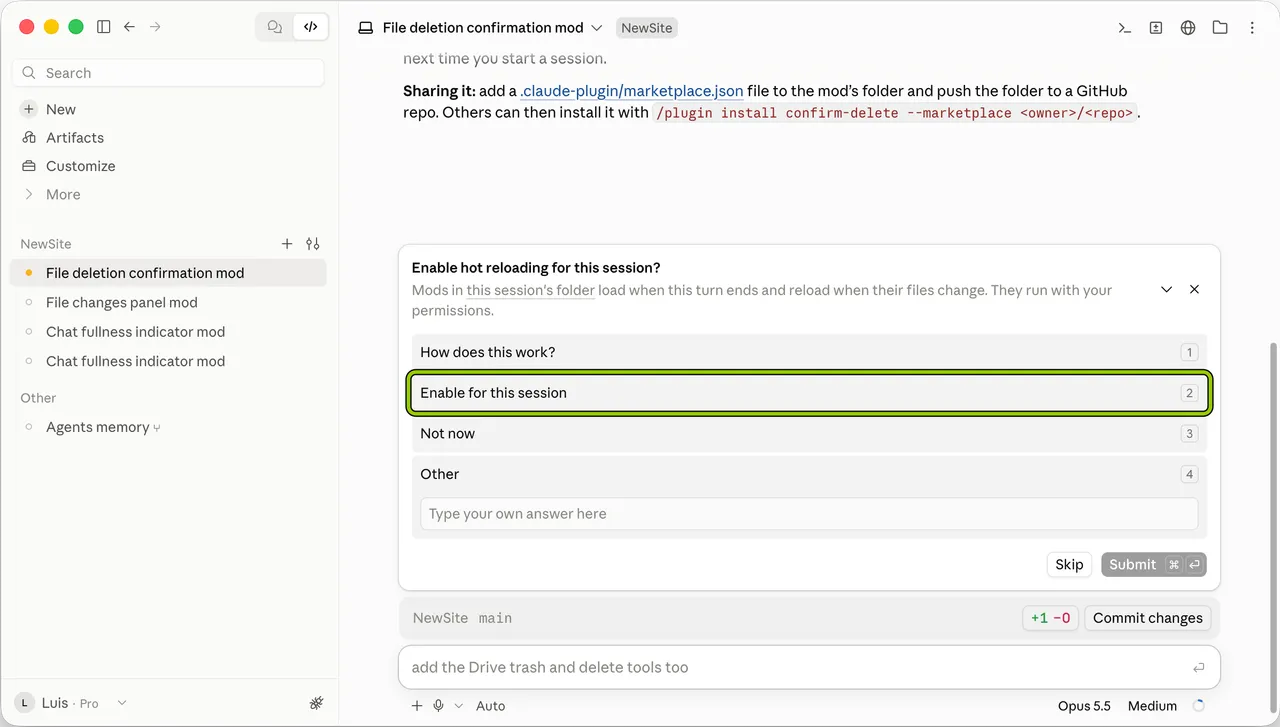
Keep. A mod lives only in the session that made it, and Claude Code deletes that session's mod folder after 30 days by default (Anthropic's docs). To keep one, you install it as a plugin, with one prompt at the end of this guide.
1. The context meter
Use this when: you work in long sessions. Every message fills more of Claude's context, the working memory it has for this chat, and you only find out it's full when the answers start to slip.
Make a mod that shows how full this chat is.

1. Draw a bar above the prompt box with a label, the percentage and the tokens used, like "Context 14% · 137k of 1M".
2. Update it after each of your replies.
3. Make it green, then amber from 80% and red from 90%.
4. The first time it passes 80%, show one notification suggesting I start a fresh session.

Keep it to this one feature. When it's working, tell me the mod's name and how to turn it off.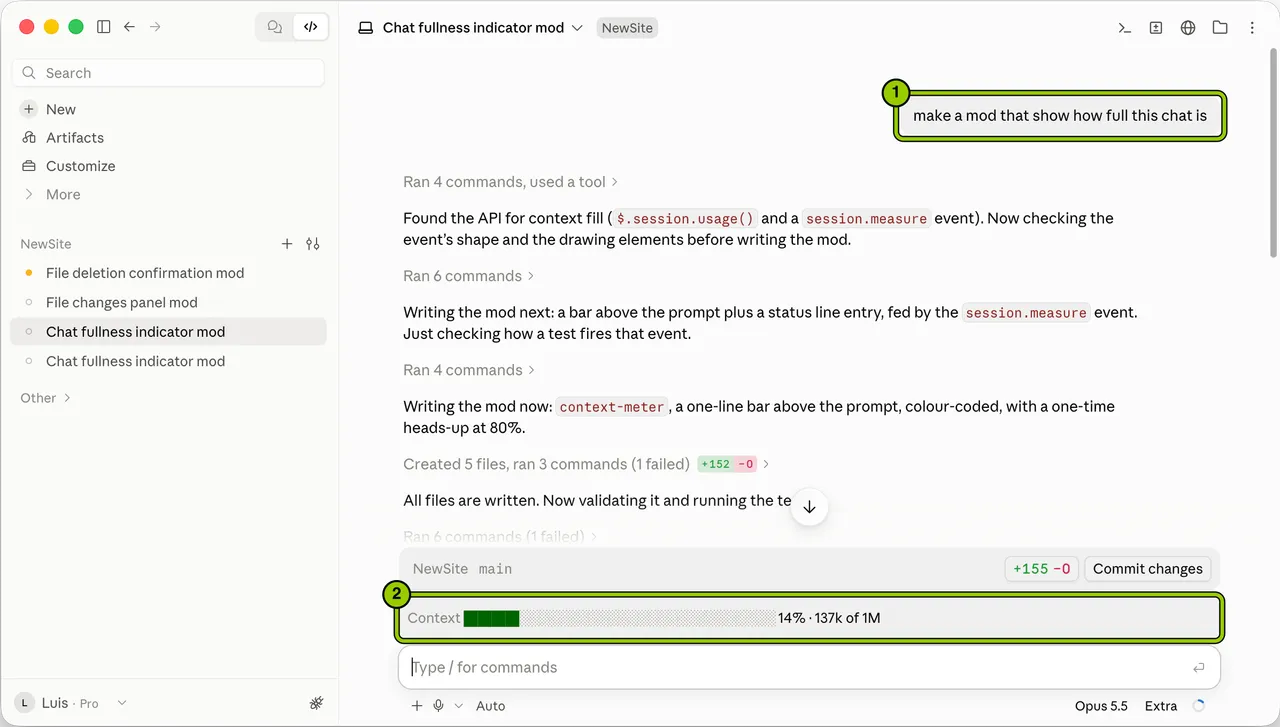
What you'll see: the bar fills a little after every reply. When it turns amber, move your work to a fresh session with the handoff prompt.
2. The changed files panel
Use this when: Claude has been working for a while and you want to know exactly which files it touched.
The desktop app only counts changes inside your project folder. The panel lists every file Claude created or edited in the chat, wherever it is. When I tried it, five of the six files were outside the project: the mod's own files.
Make a mod that shows a panel listing every file Claude changed in this chat.

1. Put the panel on the right of the screen, call it "Changed files", and open it with a /changed-files command.
2. At the top, show how many files changed and the total lines added and removed.
3. List every file you create or edit in this session, newest first, tagged "new" or "edited", with the lines added and removed.
4. Add a "Copy paths" button that copies the full list.
5. At the bottom, say that changes made with shell commands aren't tracked.

When it's working, tell me how to open and close it.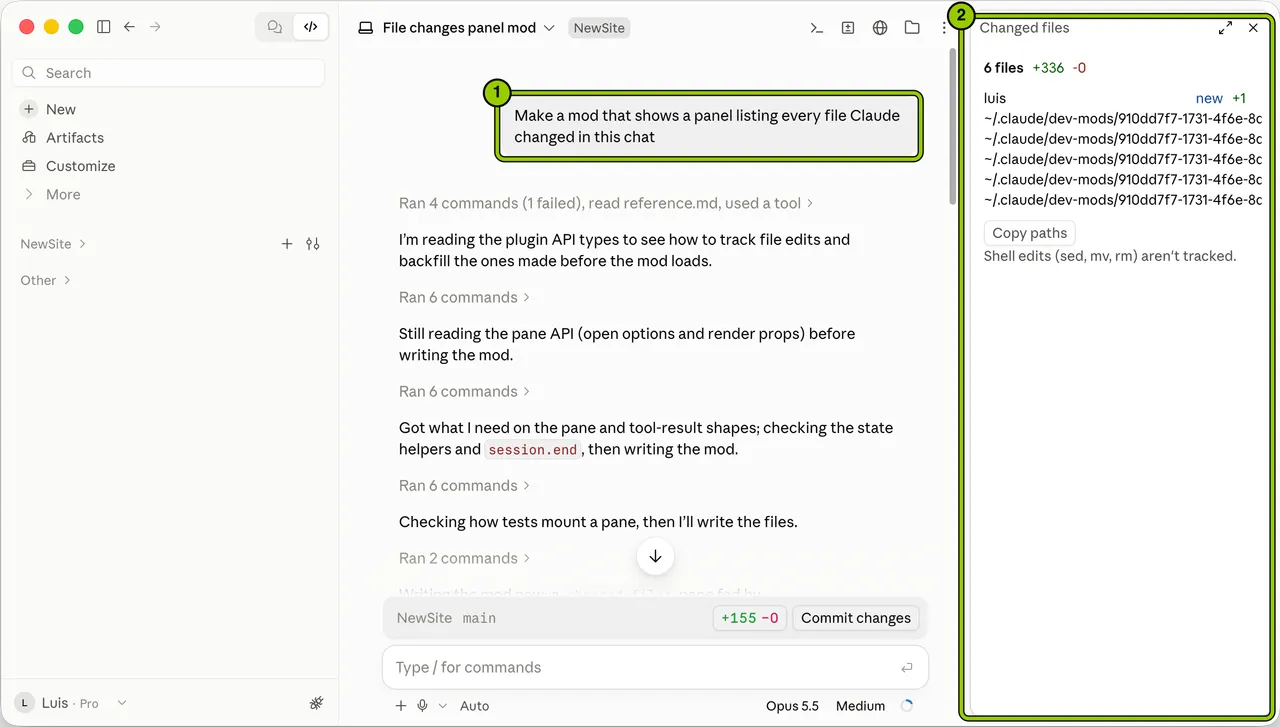
Heads up: The panel only sees files Claude changes with its own file tools. A file changed by a shell command, like
sed,mvorrm, won't show up, and the panel tells you so.
3. The delete guard
Use this when: you let Claude work without approving each step, in Auto mode or with accept edits on.
In its default mode, Claude Code asks before it runs commands. If you switch to Auto mode so you aren't clicking yes all day, a delete can go through without a question. This mod steps in before Claude Code's own permission check, so it asks in every mode (how it works).
Make a mod that asks me before Claude deletes a file.

1. Pause any action that deletes or trashes something: shell commands like rm, rmdir, git clean or find with -delete, and connector tools that delete or trash files, such as Google Drive.
2. Ask me with two options, "Delete" and "Don't delete", and list exactly what would be deleted.
3. Ask every time, whatever permission mode I'm in.
4. If I pick "Don't delete" or close the question, don't run it, and tell Claude I said no so it asks me before trying another way.
5. If the mod itself fails, block the action instead of letting it through.

When it's ready, show me how to test it on a throwaway file.
What you'll see: ask Claude to create a file called test.txt and then delete it. The question appears before anything is deleted.
Heads up: The guard reads the text of each command. A script that deletes files from the inside, or a delete written in a way it doesn't recognise, can get past it. Anthropic's docs say to treat this kind of check as a reminder, so keep using git and backups.
4. Your writing rules on every message
Use this when: Claude writes emails or posts for you and keeps sliding back into its own habits.
You can already put rules in CLAUDE.md, the instructions file Claude reads when a session starts. This mod adds them to every message instead, right next to what you asked. Only Claude sees them, and your message looks the same on screen (how it works).
Make a mod that adds my writing rules to every message.

1. Keep the rules in a file at ~/writing-rules.md, so I can edit them without changing the mod. Create the file, then ask me for my rules one question at a time until I say I'm done.
2. Add the rules after each message for you to read. Don't change what I typed, and don't show the rules in the chat.
3. Add a /rules command that turns them on or off and says which it is.
4. If the file is missing or empty, add nothing.

When it's done, write one paragraph about [A TOPIC YOU WRITE ABOUT] and tell me which rule shaped each sentence.
If you don't know your rules yet, the Humanizer guide lists the habits that make writing sound like AI. Turn the ones that bother you into rules.
Keep the ones you like
Once a mod has earned its place, ask Claude to install it properly, so it loads in every session:
Keep the [MOD NAME] mod so it loads in every session, not only this one.

1. Copy it out of this session's mods folder to ~/mods/[MOD NAME].
2. Set up ~/mods as a local plugin marketplace if it isn't one yet, and add the mod to it.
3. Install it for my user account, so it works in every project.
4. Show me each command before you run it.

Then tell me how to turn it off and how to uninstall it.
Open a new session to check. In the desktop app, click + next to the prompt box, then Plugins, then Manage plugins. In a terminal, type /plugin and go to the Installed tab. The mod should be in the list.
Common mistakes
- Expecting the mod in your next chat. It lives only in the session that made it. Run "Keep this mod" for the ones you want everywhere.
- Asking for five features at once. When something breaks, neither you nor Claude knows which part did it. Build one feature, use it, then ask for the next.
- Installing someone else's mod without reading it. Ask Claude to read the code first and tell you what it can reach, or run
claude plugin validateon its folder, which lists every event it hooks and everything it asks Claude Code to do.
The honest part
- A mod runs as you. The approval question says it: mods "run with your permissions". Once loaded, a mod can read and write any file your account can, read API keys kept in your settings or environment, see every prompt you send, approve Claude's actions without asking you and spend your usage. Mods aren't sandboxed (Anthropic's docs). Only install mods from people you trust.
- Claude can get a mod wrong. It might count the wrong thing or miss a case. Test each one on something harmless, like a throwaway file, before you rely on it.
- Mods are new. The parts of Claude Code that mods hook into can change between releases, so a mod that works today can break after an update. Tell Claude what stopped working and it can fix the mod.
- Rules cost tokens. The writing rules go with every message, so a long rules file uses more of your limit. Keep it short.
- At work, check first. Your admin can limit which mods load or switch them off (Anthropic's docs). A guard you build for yourself doesn't replace your company's security rules.
Your action plan
- Type
/statusin the Code tab and check your version. - Build the context meter. It only changes what you see.
- Add the changed files panel in your next working session.
- After a day, keep the ones you used with "Keep this mod".
- If you use Auto mode, add the delete guard. Add your writing rules once you know what you want Claude to stop doing.
Start with the context meter today.
Try next: Move a long chat to a fresh one without losing your place
- #claude-code
- #mods
- #tools